
If you have the UCx Collaborate service, you can use the UCx Web Portal to modify Project Rooms and certain My Room settings.
On the Collaborate Rooms page, click Edit in the row of the room you want to edit. The Collaborate Room – Modify page opens.
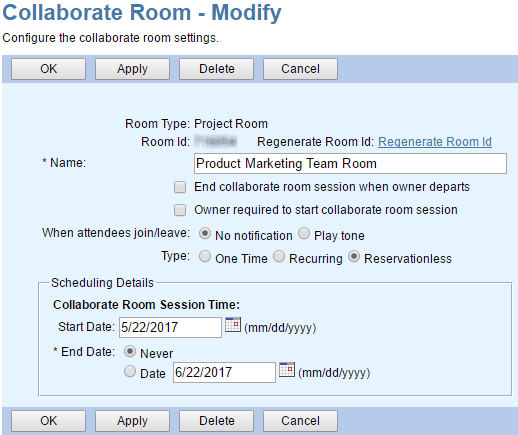
Modify the information as required. See Create a Project Room for information about these settings. When finished, click OK or Apply to save your changes, or click Cancel to exit without saving.
NOTE: The Type and Scheduling Details fields are not available for My Room.
To regenerate the room ID, click the Regenerate Room ID link. A new ID number is displayed.
NOTE: Clicking Regenerate Room ID also saves any unsaved changes on this page.
To delete the room, click Delete. The room is deleted and you are returned to the Collaborate Rooms page.
WARNING: The Delete operation is immediate and cannot be undone.
NOTE: The Delete function is not available for My Room.