
A Direct rule is helpful if you have multiple users that could send outbound faxes on a shared number, but you only want to allow one of those users to receive inbound faxes.
Log in to the Virtual Fax admin portal at https://fax.tpx.net/faxadmin, then click Incoming Routing Table on the left menu.
On the Incoming Routing Table page, click  Add and then select Add Direct Rule. The Routing Table Entry Properties page opens.
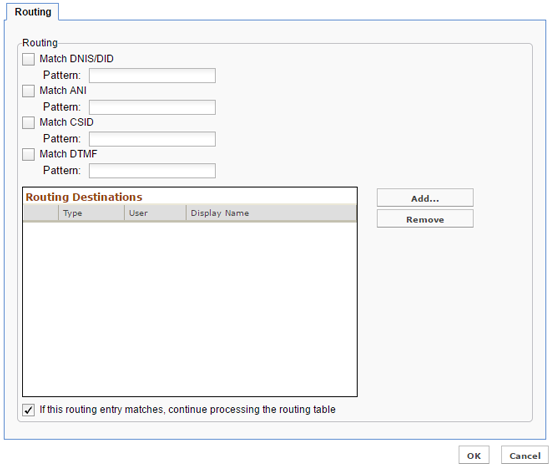
Check the boxes to set the Routing criteria according to your needs:
| Routing Criteria | Description |
| DNIS/DID | Filters the routing by the recipient’s phone number. This is the most common application. |
| ANI | Filters the routing by the sender’s phone number. You could use this option to send repeat faxes from unwanted senders directly to a “junk” email address. |
| CSID | TPx does not support this option. |
| DTMF | TPx does not support this option. |
Wildcards are allowed in the Pattern fields. The asterisk (*) represents any number of characters or no characters at all. The question mark (?) represents any single character.
Check If this routing entry matches, continue processing the routing table to allow multiple rules to apply to a single fax. This would route the same fax to several destinations according to different routing criteria. TPx recommends leaving this box unchecked, as users could otherwise receive a single fax multiple times.
Next, select the routing destinations to correspond to your defined criteria. Click Add… next to the Routing Destinations box. The Destinations window opens.
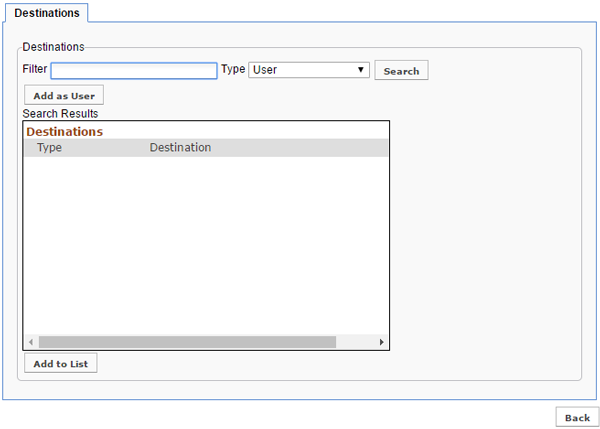
Select the type of destination using the Type drop-down list, then click Search to list them below.
NOTE: You can enter search criteria in the Filter field. For example, enter s* for all names starting with “s”.
Select destinations in the Search Results box, then click Add to List to add them to the destination list of the routing rule.
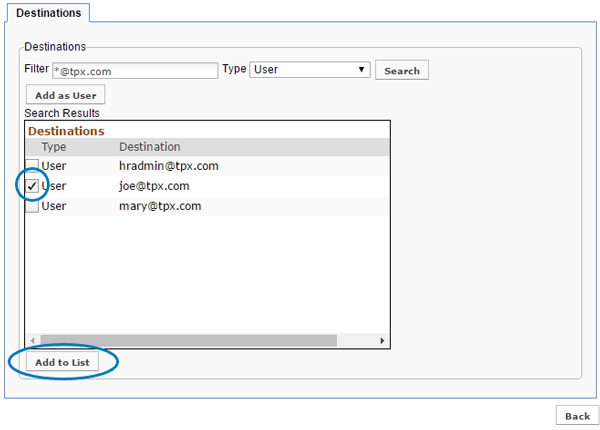
You are returned to the Routing Table Entry Properties page. Your new destinations now appear in the Routing Destinations box.
NOTE: Repeat the steps above for any other destination of any type you would need to add.
When finished, click OK to save.