
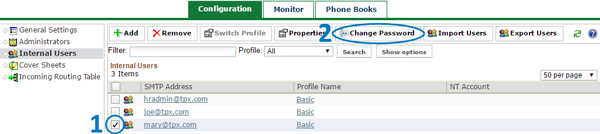
Log in to the admin portal at https://fax.tpx.net/faxadmin, then click Internal Users on the left menu.
Check the box next to the user you want to update, then click  Change Password.
The Change Password page opens.
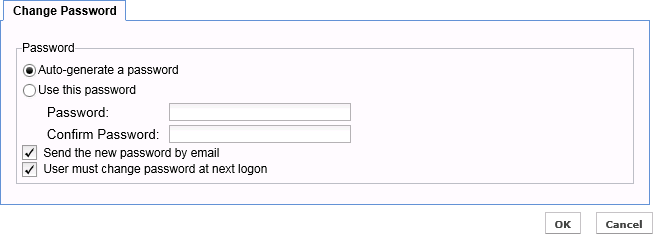
By default, Auto-generate a password is selected. If you prefer, select Use this password and manually enter a password for the user in the Password and Confirm Password fields.
Send the new password by email is enabled by default.
User must change password at next logon is enabled by default. This forces the user to change their password through the Virtual Fax web client. The user will not be able to use the web client until the password is changed.
Make your changes, then click OK to save or click Cancel to exit without saving.