
NOTE: This feature is only available for Premium Call Centers.
Call Center allows you to manually override the current mode of operation and enable the Night Service and/or Forced Forwarding of calls for selected call centers.
To enable Night Service Override and/or Forced Forwarding:
- In the Queued Calls pane, click the Service Mode button
 in the panel for one of the call centers. The Edit Queue Favorites dialog box appears.
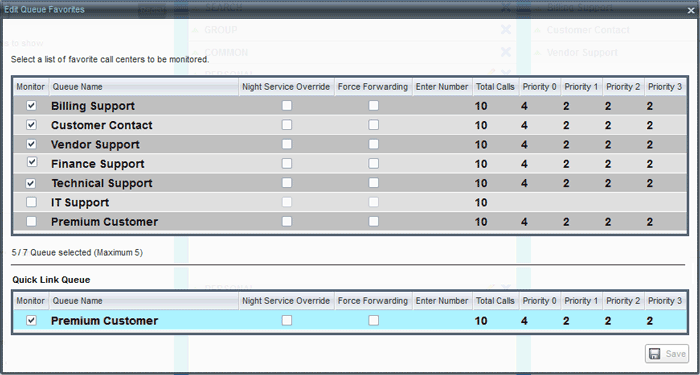
- For each call center for which you want to override the time schedule and manually initiate Night Service (including the Quick Link Queue if present), check the Night Service Override check box.
- For each call center that you want to temporarily divert calls to a specified destination (including the Quick Link Queue if present), check the Force Forwarding box, then enter the phone number to forward the calls to in the Enter Number box.
NOTE: Night Service Override has precedence over Forced Forwarding.