
With the Virtual Fax admin portal, you can bulk upload a list of users to either create new accounts or update existing users’ information.
File Formatting
The Virtual Fax portal requires a CSV file meeting the following specifications.
Field separators: Tab, comma, or semicolon.
Supported fields: Virtual Fax can support these columns in any order. Any additional fields will be ignored during the import.
- SmtpAddress (Note: this is the only required field)
- ProfileId
- NTAccount
- Password
- Salutation
- FirstName
- LastName
- JobTitle
- Cellular
- Pager
- BillingCode
- SubBillingCode
- Company
- Address
- City
- State
- Country
- ZipCode
- Phone
- Fax
- TimeZone (Note: Time zone must follow this format. If left blank, Virtual Fax will assign the default time zone for your site.)
Importing the CSV File
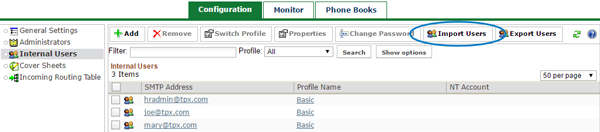
Log in to the admin portal at https://fax.tpx.net/faxadmin, then click Internal Users on the left menu. Click the  Import Users button.
The Import Users dialog appears.
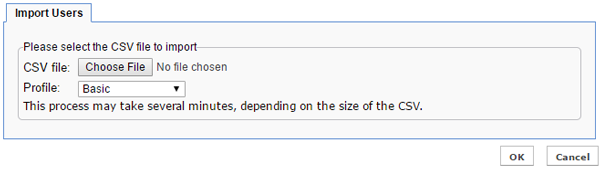
Click Choose File and browse to select your CSV file. Then, select the Profile that will be used in Virtual Fax for all the users imported in this file.
NOTE: If you don’t want to assign the same profile to all users, use the Switch Profile function after the import is complete.
Click OK to start the import. After some time (depending on the size of the CSV file), a results message appears indicating the number of records that were successfully imported.

If some rows are not imported successfully, a link allows you to download a log file. The log file is a CSV file containing the full information of only those users who weren’t imported. It also includes the error for each of these users, under the error(%error) header at the end of the line.
When finished, click OK to close the results message. The imported users now appear in your list of internal users. If the users were already in the system, their information is now up to date.