
To view a fax in the Virtual Fax portal, simply click on that fax’s entry in the Inbound History or Outbound History.
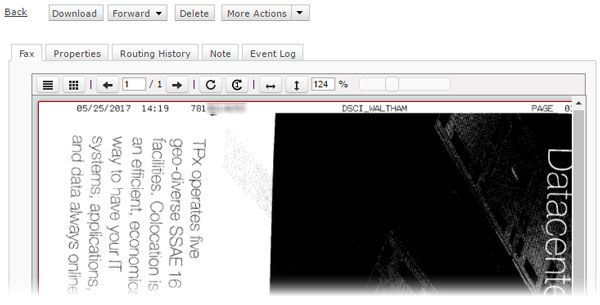
The following buttons appear at the top of the page:
- Download: Downloads a copy of the fax image to your local device in TIFF format.
- Forward: (Inbound faxes only) Forward the fax to one or more recipients.
- Resubmit: (Outbound faxes only) Resends the fax to the same number or to different number(s).
- Delete: Deletes the fax.
- More Actions – Print Fax Information: Opens your web browser’s Print dialog to print the fax Properties, Routing History, and Note together.
- More Actions – Mark as Unviewed: Returns the fax to unviewed status (bold text on the history list).
Underneath the buttons, the fax details are divided into these tabs:
- Fax: Shows the image contents of the fax; cannot be edited.
- Properties: Shows details about the fax’s transmission.
- Routing History: (Inbound faxes only) Shows the routing information and history for this fax.
- Note: A space for you to add personal notes to the fax. For example, you could use the note as a content reminder or as keywords for a search query. The text box can contain up to 2,500 characters.
- Event Log: Displays all actions that were performed on this fax.