
The Contacts pane contains your contact directories. From here, you can place or manage calls to your contacts.
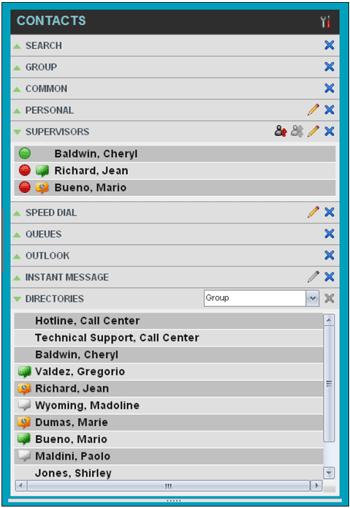
The Contacts pane contains the following panels:
| Panel | What can you do here? |
| Search | Look for specific contacts in your directories. |
| Enterprise/Group | View your group or enterprise directory. |
| Common | View your group’s common phone list (configured by your administrator). |
| Personal | View the contacts in your personal phone list. |
| Agents | Supervisors: Monitor and manage agents under your supervision. |
| Supervisors | Agents: View a list of your supervisors. |
| Speed Dial | View your Speed Dial contacts. NOTE: Not available if you do not have the Speed Dial 8 and/or Speed Dial 100 services assigned. |
| Queues | View the call centers you are staffing as an agent or monitoring as a supervisor; quickly transfer calls to queues. |
| Custom Directories | View your group’s custom contact directories (configured by your administrator). |
| Instant Message | View IM&P (Instant Messaging & Presence) contacts you are subscribed to and their presence state. This panel is empty if your presence state is set to Offline. NOTE: Not available if you do not have an IM&P service assigned. |
| Outlook | View your Outlook contacts. |
| Directories | Get a consolidated view of contacts from the following directories: Enterprise/Group, Custom, Personal, Outlook, and Speed Dial. You cannot close this panel, but you can collapse it or choose which directories to display. |
NOTE: The contact directories you have access to depend on your system configuration as well as the services assigned to you. For more information, contact your administrator.
When you click on a contact, the entry expands and the contact’s information appears, including phone numbers and the action buttons for the operations that you can currently take on that contact.

You can only view the details of one contact per directory at a time. When you click on another contact in the same directory, the details of the currently expanded contact are automatically hidden.