
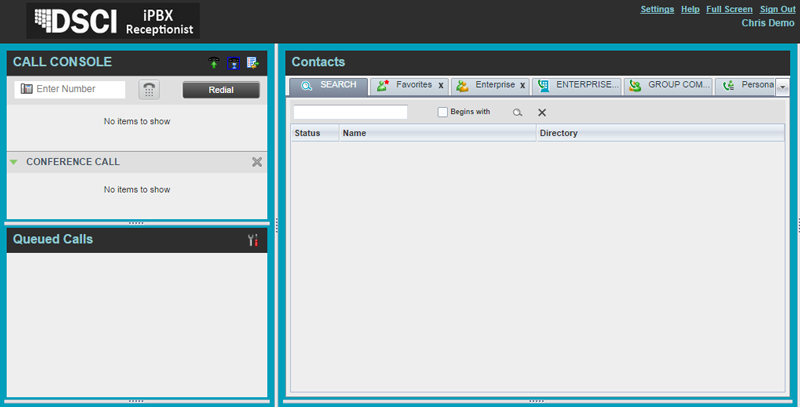
The Receptionist user interface contains these main work areas:
| Work area | What can you do here? |
| Logo Pane | Access other pages or functions; view account information; view error, warning, and information messages. |
| Call Console | View and manage current calls. |
| Queued Calls | Manage queued calls. |
| Contacts | Place calls to contacts; monitor selected contacts. |
| Settings pages | Configure the Receptionist client. |
| Call History dialog box | View and return past calls. |
| Chat windows | Chat with Instant Messaging and Presence (IM&P) contacts. |
Many visual aspects of Receptionist are configurable: for example, you can decide which windows should be open and change the size and placement of windows on the screen. When you log out, you can choose to save your configured workspace and retrieve it the next time you log in.
Most Receptionist controls are context-based, which means that they appear only when the action they represent can be taken.
NOTES:
- To work in full screen mode, make sure that the main window is in focus and then press F11.
- Receptionist does not support the Back, Forward, and Refresh operations of the web browser.