
As a group administrator, you can set the rules that users in your group must follow when entering, resetting, or changing their passwords. (You can also configure passcode rules.)
To view and/or configure your group’s password rules:
- Log in to ucx.telepacific.com with your admin credentials.
- Click Utilities on the left menu, then click Password Rules in the Basic column.
- The Password Rules page opens.
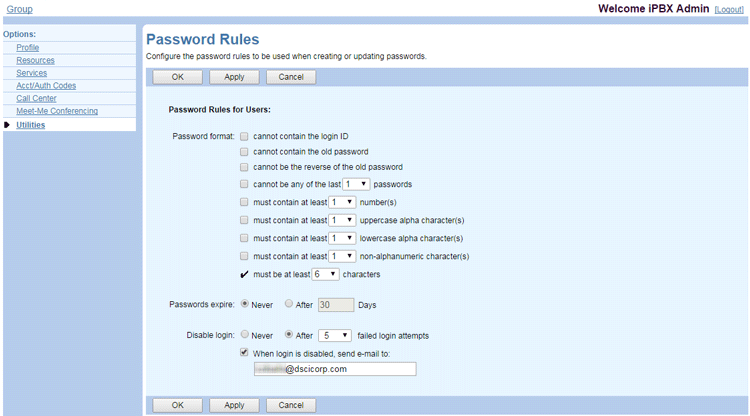
NOTE: If an administrator above you has set the password rules, this page is read-only. - For Password format rules, check any rules you want to apply.
- Define password expiration rules by selecting Never or After ___ Days.
- Define login disabling rules by selecting Never or After ___ Days.
- If you choose to disable user accounts after any number of failed login attempts, check the When login is disabled, send e-mail to box and type the e-mail address of a group administrator for the system to notify. The system sends a notification e-mail containing the user ID and caller ID of the caller initiating the last failed login attempt.
NOTE: Once the system disables a user account, a group administrator must reset the password of that account in order to return the account to service. - Click OK or Apply to save changes, or Cancel to exit without saving.